QuickChart
QuickChart© is the ability to rapidly complete non-patient specific data for cases that contain BLOCs that will be completed with the exact same data (ex. equipment serial numbers). When a QuickChart is created from a workflow, it takes a snapshot of QuickChart-able BLOCs/fields. That snapshot is saved and can later be applied to another chart. If QuickChart-able fields are blank when the QuickChart is created those empty fields are captured as such.
As pre-charting is not considered best practice, QuickCharts are applied once the patient has entered the room. When a QuickChart is applied, it will overwrite any existing data in fields to which it is applied. If a field contains data and then a QuickChart in which that field is empty is applied, the field will be cleared. Data that is inserted via QuickChart can be edited or deleted. When a QuickChart is applied the eChart audit log will attribution that data to the user who applied the QuickChart.
Jump to:
BLOCs that QuickChart
One or more fields in the following BLOCs may be completed by QuickChart:
IV Insertion BLOC 017
Prep BLOC 025
Positioning BLOC 026
Positioning Aids BLOC 027
Drains/Packing Placement BLOC 029
Staff BLOC 030
Solutions BLOC 037
Dressings BLOC 038
Equipment - Cautery BLOC 039
Equipment - Laser Ophthalmic BLOC 040
Equipment Tourniquet BLOC 041
Equipment BLOC 042
Equipment - Radiology BLOC 043
Equipment - Laser BLOC 044
Thermoregulation BLOC 045
Observer Information BLOC 046
Wound Class BLOC 047
Instrument Sterilization BLOC 053
Oxygen Therapy BLOC 056
IV Discontinued BLOC 057
Discharge Status BLOC 058
Anesthesia Care BLOC 067
Interim Operative Report BLOC 074
Operative Report BLOC 092
Patient Safety Measure BLOC 101
Fire Risk Assessment BLOC 104
Discharge Plan BLOC 108
Notes BLOC 119
IV Discontinued (2) BLOC 131
IV Insertion (2) BLOC 148
Create a QuickChart
- Complete a Workflow excluding the Room Out Time
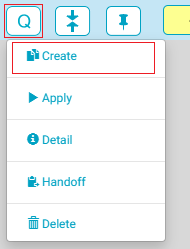
- In the Chart Header for that Workflow, tap the QuickChart icon
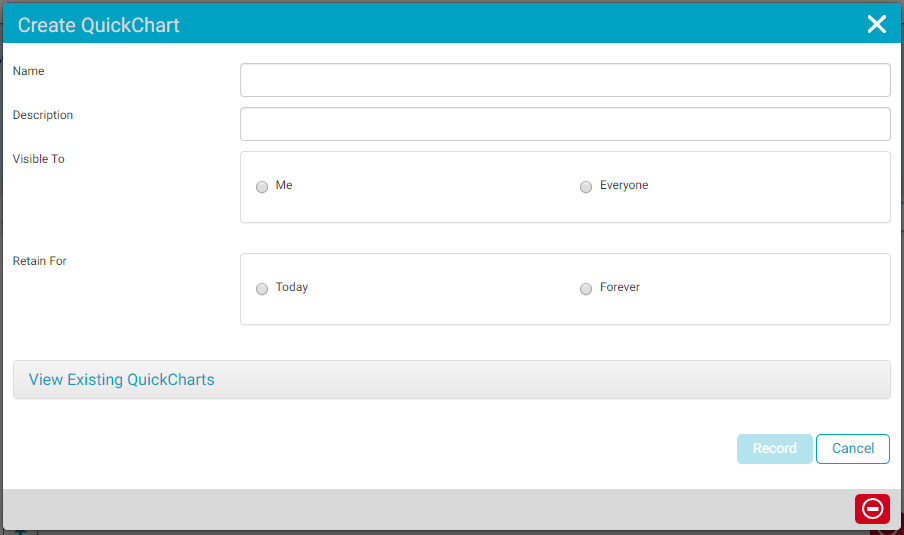
- Select Create. The Create QuickChart flyout will open.
- Enter a name for the QuickChart (ex. Dr. L Cataract). The system will not allow duplicate QuickChart names.
- Enter a description if desired.
- Select who the QuickChart will be visible to - either the creating user, "me," or everyone.
- Select how long to retain the QuickChart - either today or forever.
Apply a QuickChart
A QuickChart can be applied to any Workflow that has any or all of the BLOCs contained in the recorded QuickChart. A QuickChart can only be applied after a room in time has been documented.
To Apply a QuickChart:
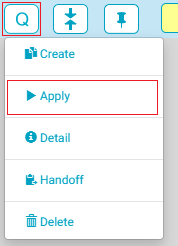
- Tap the QuickChart icon in the Chart Header and click the Apply button.
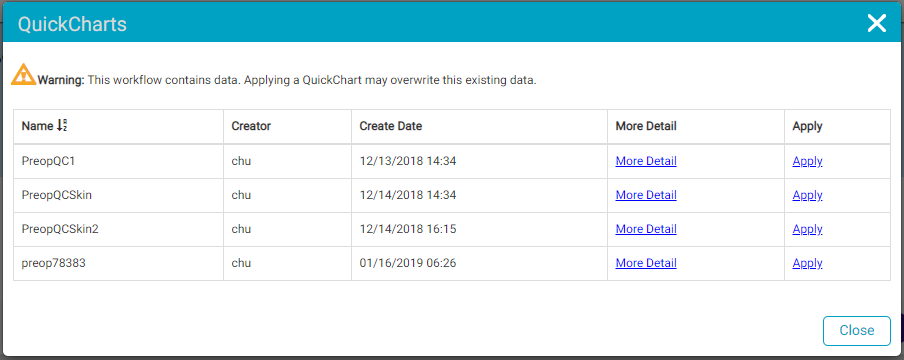
- A flyout will appear with all available QuickChart options. Click the "Apply" hyperlink to apply the desired QuickChart.
- The QuickCharted BLOCs will now contain the data created in the recorded template. The BLOCs to which data was applied will have the Acknowledge Icon for the user to confirm the data.
Delete a QuickChart
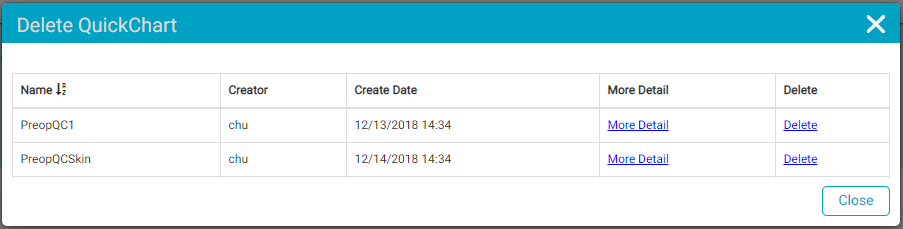
QuickCharts that were created for “Today” are deleted every night. QuickCharts that are created “forever” can be deleted via the Delete selection under the QuickChart icon.
To Delete a QuickChart:
- Select the QuickChart icon.
- Click the "Delete" hyperlink for the QuickChart to be deleted.
Handoff a QuickChart
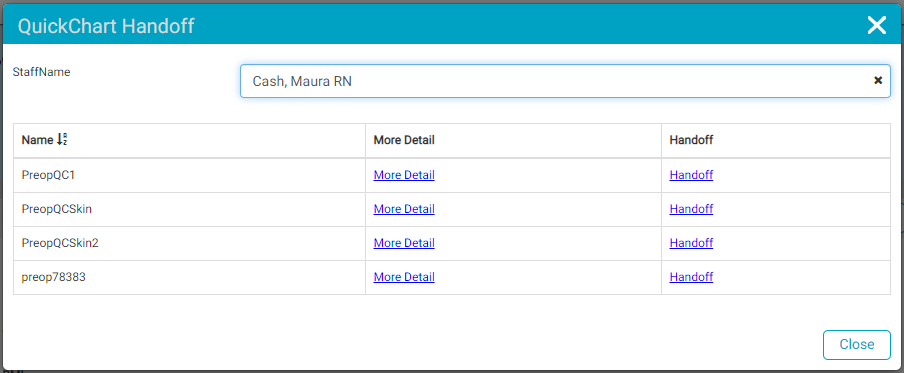
If a user has created a QuickChart© for themselves, they can “loan” it to another user via the Handoff tool. This tool is useful for lunch relief staff who would otherwise have to chart all BLOCs individually. The receiving user can later reverse the process to return the QuickChart to the original user.
To Handoff a QuickChart:
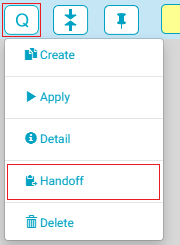
- In a chart workflow, tap the QuickChart icon.
- Click the Handoff button.
- Enter the staff via the type-ahead search field who will be receiving the handoff.
- Click the "Handoff" hyperlink for the QuickChart to be handed off.

"More Detail"
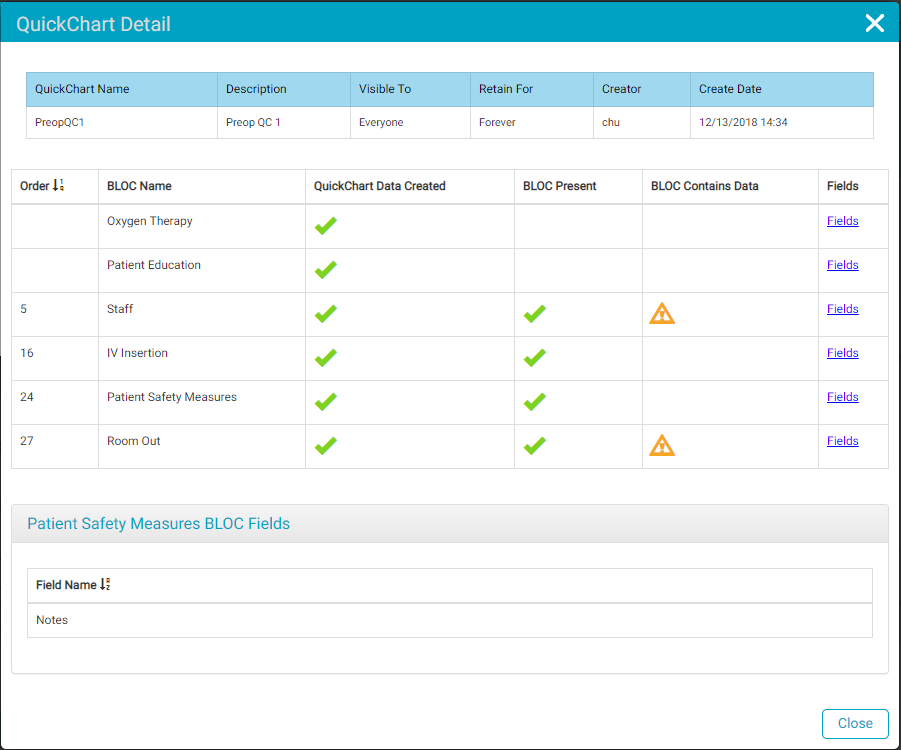
When applying, deleting, or handing off a QuickChart, there is an option to view "More Detail" for a QuickChart.
Tapping the "More Detail" hyperlink will open another flyout that provides detailed information about the QuickChart including: the BLOCs the QuickChart contains data for, whether the BLOC is present in the current workflow, if the BLOC in the current workflow contains data, and the fields in the BLOC to which the QuickChart will apply. Tapping the "Fields" hyperlink for a BLOC will display the fields in the BLOC to which the QuickChart will apply.
Additional Notes:
- It is not possible to view the actual data that will be QuickCharted.
- When a QuickChart has been applied and any fields have been filled, the associated BLOC(s) will show the triangle “acknowledge” icon
- A QuickChart can be applied multiple times and more than one QuickChart can be applied to the same chart workflow.
- QuickCharts can be “stacked”. Example:
- There may be an Intra-Op Workflow QuickChart for Surgeon A for a Knee Scope that is saved for everyone and forever
- A nurse may be circulating this surgeon’s room today and choose to apply the above QuickChart, complete the rest of the documentation minus the Room Out, and record a new QuickChart to use for the rest of the day
- This QuickChart could include information that would potentially ONLY apply to today: staff in the room, equipment serial numbers, etc.
- This nurse can they apply this second “daily” QuckChart to the rest of the days same type cases to maximize the capabilities!